Bring your roster
A screenshot, a photo, or a PDF.
 RosterToCal
A LITTLE LESS WORK, AFTER WORK
Turn a work roster screenshot, photo or PDF into calendar events. Find your shifts, review the details, then export an ICS file.
Try the sample without an account. Sign in for 3 free readings of your own roster.
Download an ICS file for Google, Apple or Outlook Calendar.
 A clearer week ahead.
A screenshot, a photo, or a PDF.
Pick your name. Check every shift.
Export to your favorite calendar.
TRY IT BEFORE SIGNING IN
Start with seven prefilled rows for Alex Chen from our fictional roster. Change a time, check a night shift, then download a sample ICS. No sign-in, AI reading or credits needed.
Need a paper copy? Make a free 2027 printable shift calendar from CSV or manually entered shifts.
SEE IT IN ACTION
Follow a fictional team roster through the real reader. See how to check an overnight shift and download a calendar file.
Use the exact name and the timezone where you work.
Review the dates, shift codes and overnight hours before saving.
Save your shifts and import the ICS file into your calendar.
Prefilled results · No sign-in or reading credits.
Calendar import is manual; this is not automatic sync.
New to roster imports? See a worked example or find your calendar’s import steps.
| Date | Type | Start | End | Shift | Review |
|---|
An end time earlier than the start means the next day. Fill in missing details and confirm uncertain rows against the original. Only listed dates are updated; other dates stay unchanged.
.ics files can be imported into Google, Apple, and Outlook calendars. Repeated file imports behave differently in each app. This tool avoids duplicates in your saved calendar and keeps event IDs and revisions stable. Ongoing sync requires an accessible calendar subscription or a calendar-provider connection.
Downloads from your saved calendar require sign-in. The interactive sample above exports locally without an account. Both use manual import, not automatic sync.
$0
Find your rhythm.
US$4.99 one time
For occasional roster changes.
US$4.99 / month
For a schedule that keeps changing.
One reading covers one person in one file, up to 3 pages. Failed readings do not use credits. Edits and repeat downloads are free. Unlimited is for personal use, with one reading at a time; account sharing, automated use and bulk processing are excluded. Prices are in US dollars. Applicable taxes are shown at checkout.
FROM ROSTER TO CALENDAR
RosterToCal reads one person’s shifts from a work roster screenshot, photo or PDF. You review the dates and times before saving them and downloading an ICS calendar file.
Use PNG, JPG, WebP or PDF, up to 12 MB and 3 pages per file. Keep your name, dates and the shift-code legend readable. If the month is missing, provide a reference month; don’t guess unclear hours.
Choose the name exactly as it appears and set your workplace time zone. Check every row against the source, especially similar names, night shifts and changed days off. AI can misread a roster; you can correct the rows before confirming.
Save the reviewed shifts, then download .ics. This is a manual export, not automatic calendar sync. Google sign-in identifies your account; it does not give RosterToCal access to your Google Calendar.
A WORKED EXAMPLE
The included fictional team roster has two similar names. For Alex Chen, the week of 5–11 October 2026 contains five work shifts, including two overnight shifts. Alex Cheng’s rows belong to someone else.
In this sample, N means 23:00–07:00 the next day. A different employer’s code can mean different hours: always check the legend.
Sign-in required to read the sample. It uses one of your readings.
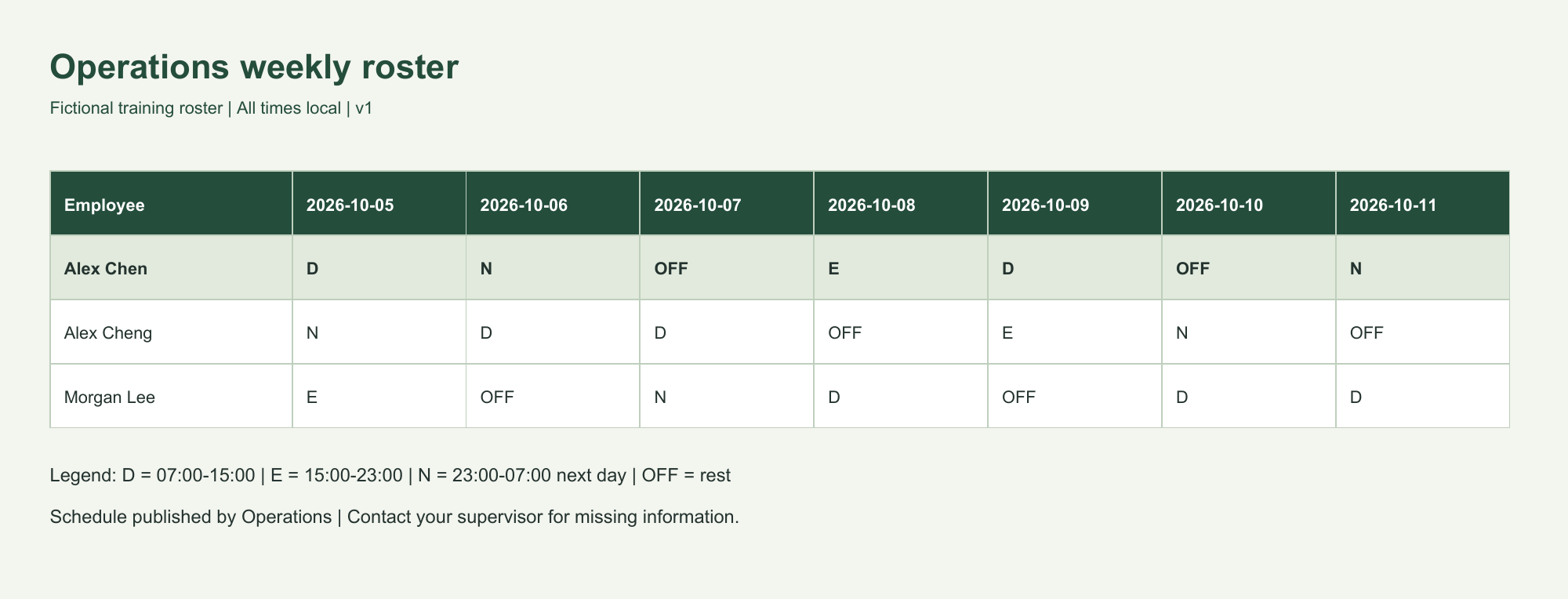
| Roster date | Code | Calendar result |
|---|---|---|
| 5 Oct | D | 07:00–15:00 on 5 Oct |
| 6 Oct | N | 23:00 on 6 Oct → 07:00 on 7 Oct |
| 7 Oct | OFF | No work event for that date |
AFTER YOU DOWNLOAD
Save your reviewed shifts and choose Download .ics. A separate work-shifts calendar makes it easier to review imports without mixing them with personal events.
Sign in for three free readings with no card required. The one-time US$4.99 Credit Pack includes 20 readings. You can edit the sample roster and download an ICS without signing in.
An end time earlier than the start is treated as the next day. For example, a 23:00–07:00 shift starting on Tuesday ends on Wednesday. Check the starting date, timezone and the original roster before saving.
No. RosterToCal previews added, changed and removed shifts in your saved calendar. Only dates included in the reviewed roster are updated. Download a new ICS file after saving; the calendar app handles repeated imports. Stable event IDs do not guarantee that every app will update or remove an earlier import. Check changed shifts in your destination calendar and remove obsolete events when needed.
Images are processed by AI through OpenRouter. RosterToCal does not store original image or PDF files on its server; extracted readings may be kept for up to 30 days, and confirmed shifts remain in your private account until deleted. Processing providers have their own retention terms. Crop unrelated information and only upload rosters you are allowed to process. Read the privacy policy.